
Checklist · 17 min
12-point post-uninstall audit
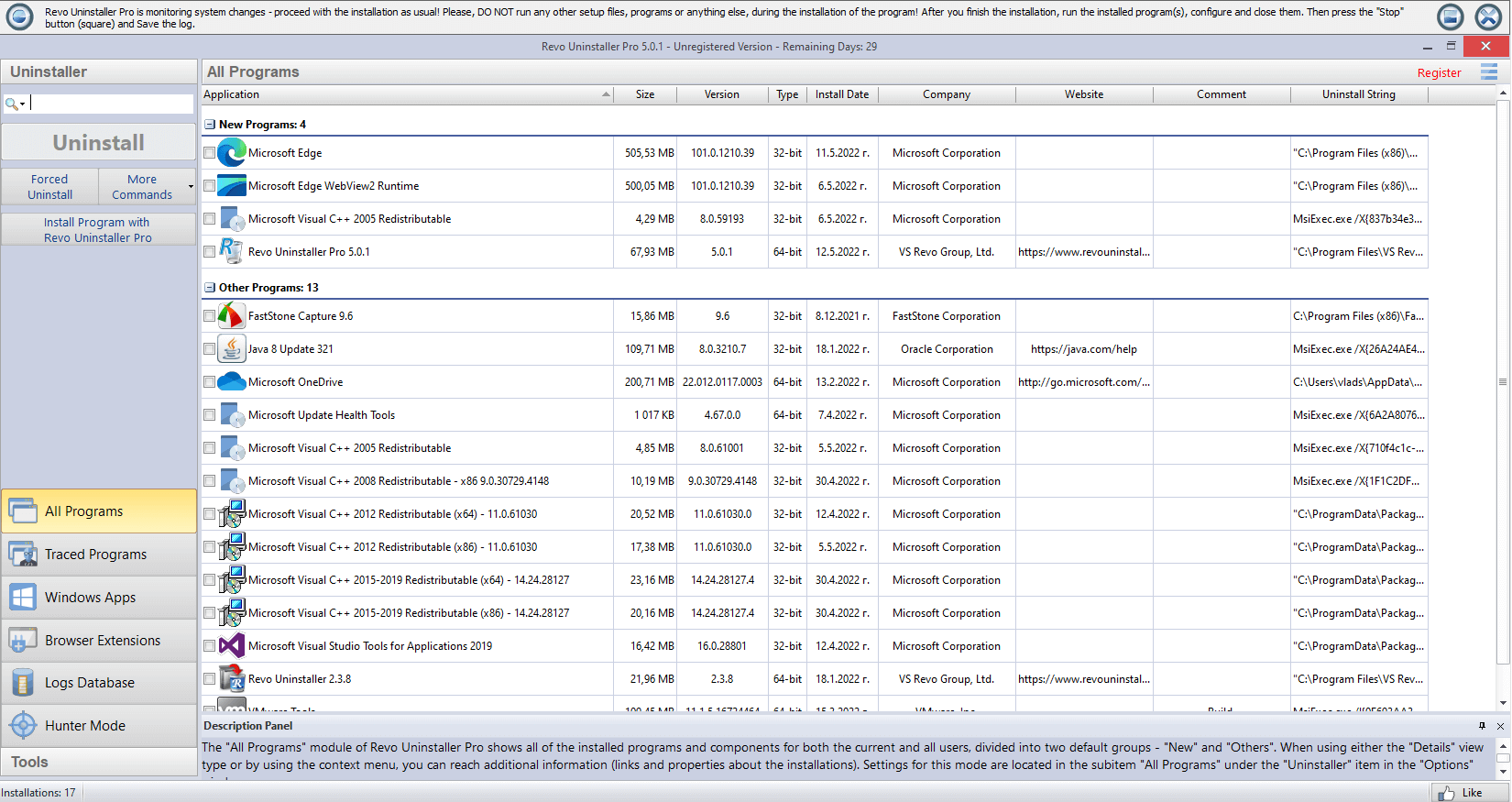
After the program entry disappears, the work is often only half done. Suites install services, scheduled tasks, shell hooks, and drivers that do not always leave with the primary uninstaller. Walk this checklist once per “big” removal so you are not debugging mystery CPU spikes two weeks later.
You will not need every line for a tiny calculator app; for creative tools, security suites, games with anti-cheat, and anything that ships its own VPN or virtual device, the list pays for itself.
The twelve checks
- Services — Open the Services console, sort by name or manufacturer, and look for the vendor string. Note the path to the executable before you change startup type.
- Task Scheduler — Browse Task Scheduler Library (enable “Hidden tasks” in View where available). Uninstallers often leave weekly update checks behind.
- Startup — Task Manager Startup apps plus Revo’s App Manager: catch helpers that relaunch tray icons or updaters.
- Shell extensions — If the app hooked Explorer context menus or thumbnails, look for leftover DLL registrations before you blame random freezes on “Windows.”
- Firewall rules — Windows Defender Firewall with Advanced Security: inbound/outbound rules that mention the product name.
- Browsers — Extensions, site permissions, and installed PWAs tied to the old workflow.
- Printers and virtual devices — PDF printers, virtual audio cables, capture devices: remove from Settings before deleting orphaned drivers.
- VPN adapters — TUN/TAP style interfaces often survive the main app; remove through Network adapters or vendor tool if still listed.
- Program Files — Empty or stub folders left under
Program FilesandProgram Files (x86). - Per-user and shared data —
AppData(Roaming/Local) andProgramDatasubtrees for the vendor. - Environment — PATH pollution and user/system environment variables pointing at removed install roots.
- Reboot — One clean restart before you declare victory; pending file operations can mask “gone” items until then.
Evidence for IT and for future you
Export or screenshot anything you disable in Services or Task Scheduler. On domain-joined PCs, some items reappear after policy refresh; your evidence speeds up the conversation with IT.
If you use Revo’s leftover lists, save a text export or screenshots when you touch anything ambiguous. That paper trail matters when someone asks whether a shared runtime was removed on purpose.
Order of operations
Uninstall from the vendor’s own entry first when possible, then run Revo’s leftover pass at the scan mode you trust that day (see scan modes), then walk this checklist. Jumping straight to aggressive cleanup skips the context that tells you which scheduled task was actually theirs.
Minimal path for small apps
Portable utilities, single-folder tools, and store apps with no drivers might only need items 9–12 plus a quick glance at Startup. Still peek at Task Scheduler if the app ever offered “check for updates on a schedule”—that checkbox loves to outlive the parent UI.
Signals something is still hooked
- Tray icon reappears after logoff/login without reinstalling the product.
- Firewall prompts reference an executable path you thought you removed.
- Disk activity spikes at the same minute past the hour (classic scheduled task footprint).
- Audio or print stack misbehaves only on profiles that had the old suite installed—often a per-user shell extension or driver filter left behind.
When several signals line up, return to Services and Scheduler with the vendor string from the binary path, not only the marketing name of the app.