
Troubleshoot · 17 min
Grayed-out uninstall button
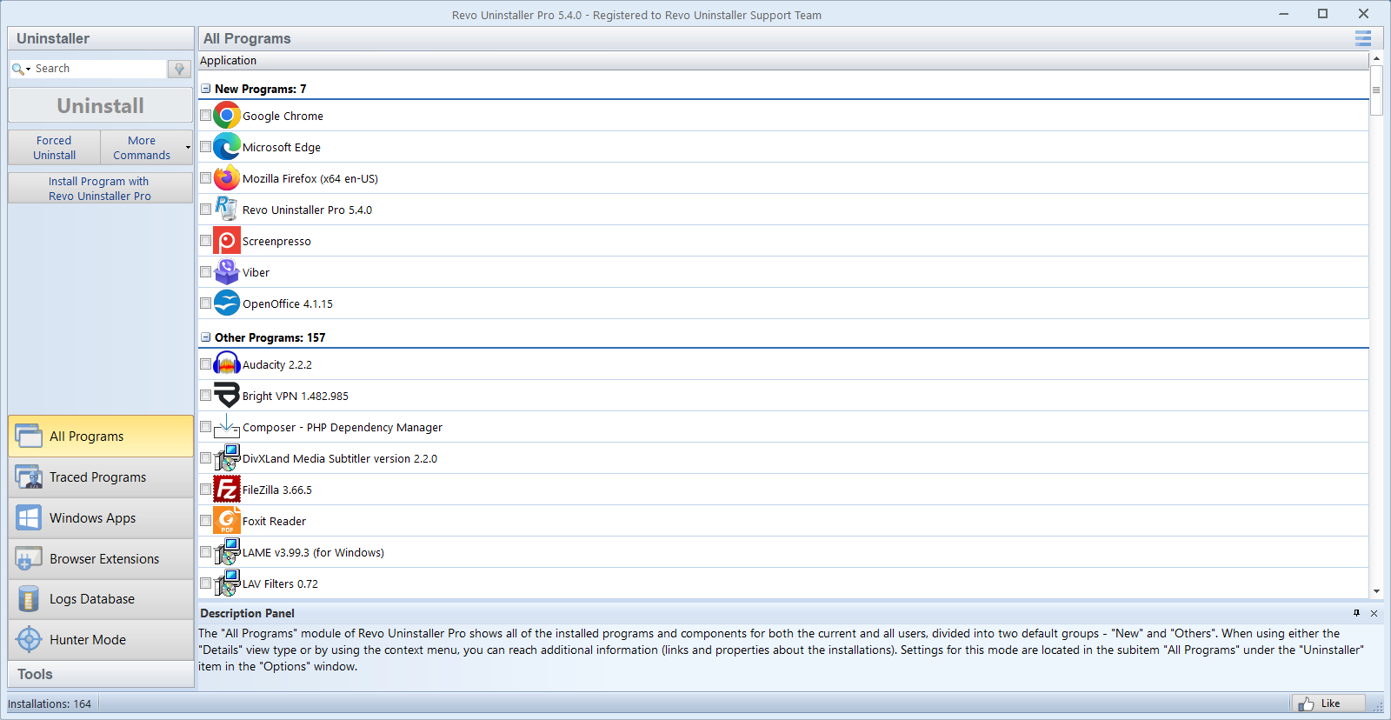
A grayed-out uninstall button is Windows (or the store) telling you “not now,” not “never.” Your job is to figure out whether the block is elevation, pending work, corruption, packaging, or policy—then pick the least destructive fix.
Start with elevation and context
Run Settings → Apps as an administrator where possible, and launch Revo from an elevated session when you are removing system-adjacent tools. Some entries only enable uninstall when the viewing user matches the installing user or has admin rights.
If the app was installed “for all users,” the uninstall entry may still look inactive until you are in the right security context. Try an admin PowerShell or the classic Programs and Features path if Settings keeps disagreeing with you.
Pending reboots and locked installers
Check for a pending reboot flag; Windows will block some removals until restart. MSI-based apps sometimes leave a half-finished transaction; a reboot clears the stuck state more often than another uninstall click.
Close background agents (sync, updaters, game launchers) that keep handles open on the install folder. Task Manager → Details sorted by CPU or disk sometimes shows the locker immediately.
Store, repair, and component health
Offline environments sometimes cache broken metadata; clearing the Microsoft Store cache or repairing the app can restore the button. For Win32 apps delivered through the store, the repair channel may differ from classic Control Panel flows.
UWP and some store-delivered Win32 apps also respect different repair channels. If “Uninstall” stays gray only for one app, compare against another store title: a broken Windows Update or corrupt component store may be the real culprit—fix the platform before you escalate to forced removal.
Managed PCs and policy
On managed PCs, policy may hide uninstall entirely. Forced uninstall in Revo is a last resort after IT guidance, not a way to bypass compliance. If Software Center or Intune owns the lifecycle, your local button may be intentionally inert.
When Revo’s forced path enters the picture
Reserve forced uninstall for orphaned entries with no working vendor uninstaller, after you have backups and you understand what services or drivers still load at boot. Pair it with a post-removal audit (12-point checklist) so you catch scheduled tasks and services the UI never mentioned.
Per-user vs all-users installs
Some installers register under the installing account only. If you open Settings as a different admin, uninstall can stay disabled until you log in as the original user or use an elevated maintenance tool that sees that profile’s registrations.
Roaming laptops with “old” admin accounts are a frequent surprise: the button works for IT’s account but not for the primary user because the MSI was advertised per-user.
MSI repair before rage-quit
For classic MSI packages, try “Repair” from Programs and Features (or the vendor’s command-line repair flags) before forced removal. A half-written uninstall key in the registry sometimes flips the UI gray even though the payload is intact.
If you do capture MSI logs for work, keep them with the ticket ID; they are unreadable soup the next day without context, but gold when a vendor asks for proof of failure.