
Windows · uninstalls · leftovers
Uninstall calmly.
Find what default removal misses.
Practical notes on Revo Uninstaller—how the list works, how leftover scans behave, and how people fix stuck uninstalls without turning the PC into a guessing game.
Whether you are freeing space on a laptop, cleaning a relative’s PC, or prepping a machine for resale: remove through normal channels first, then use Revo to inspect what is left—not bulk delete on day one.
revo-uninstaller.app is independent editorial. Guides live here; Download expects a setup file you host. License questions stay with your vendor.
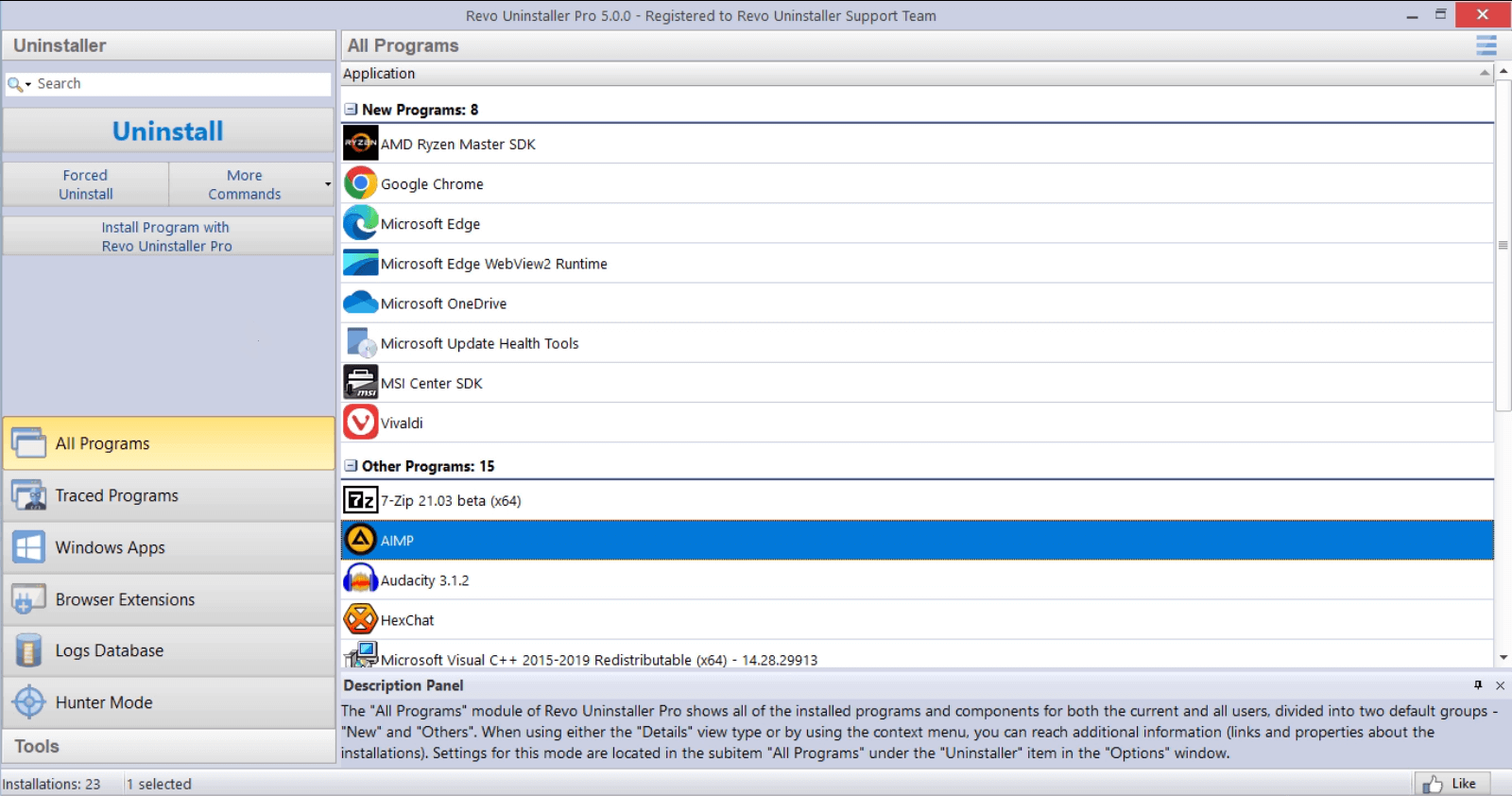
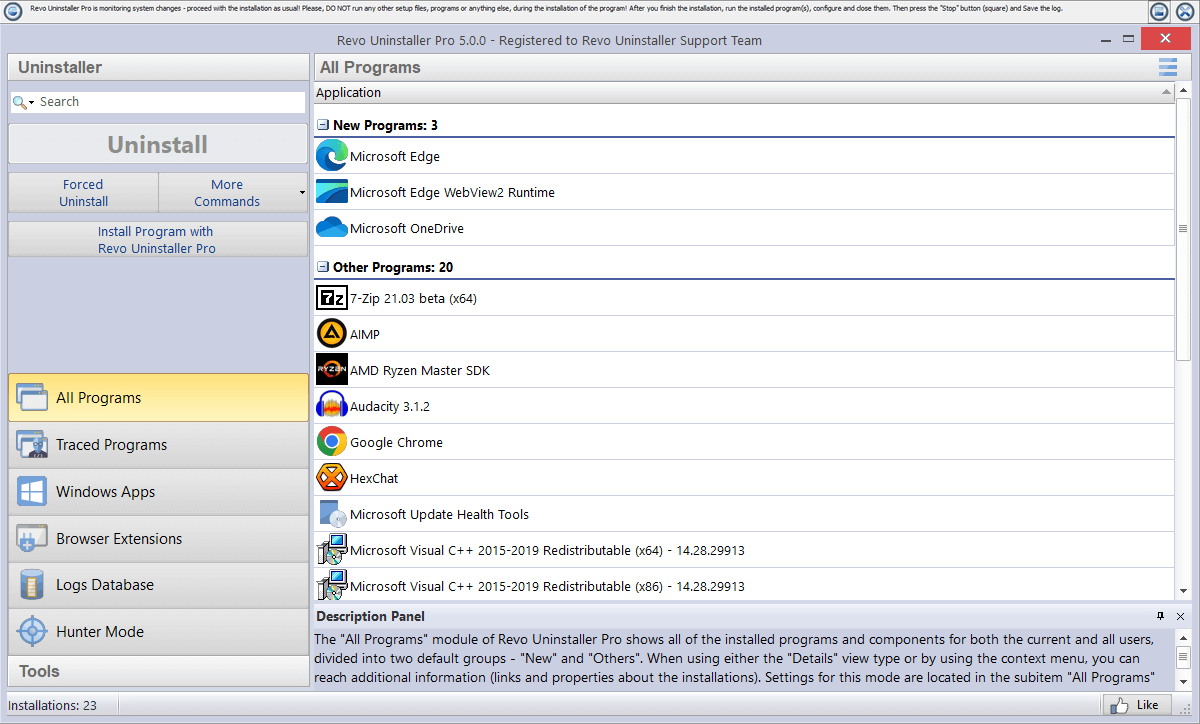
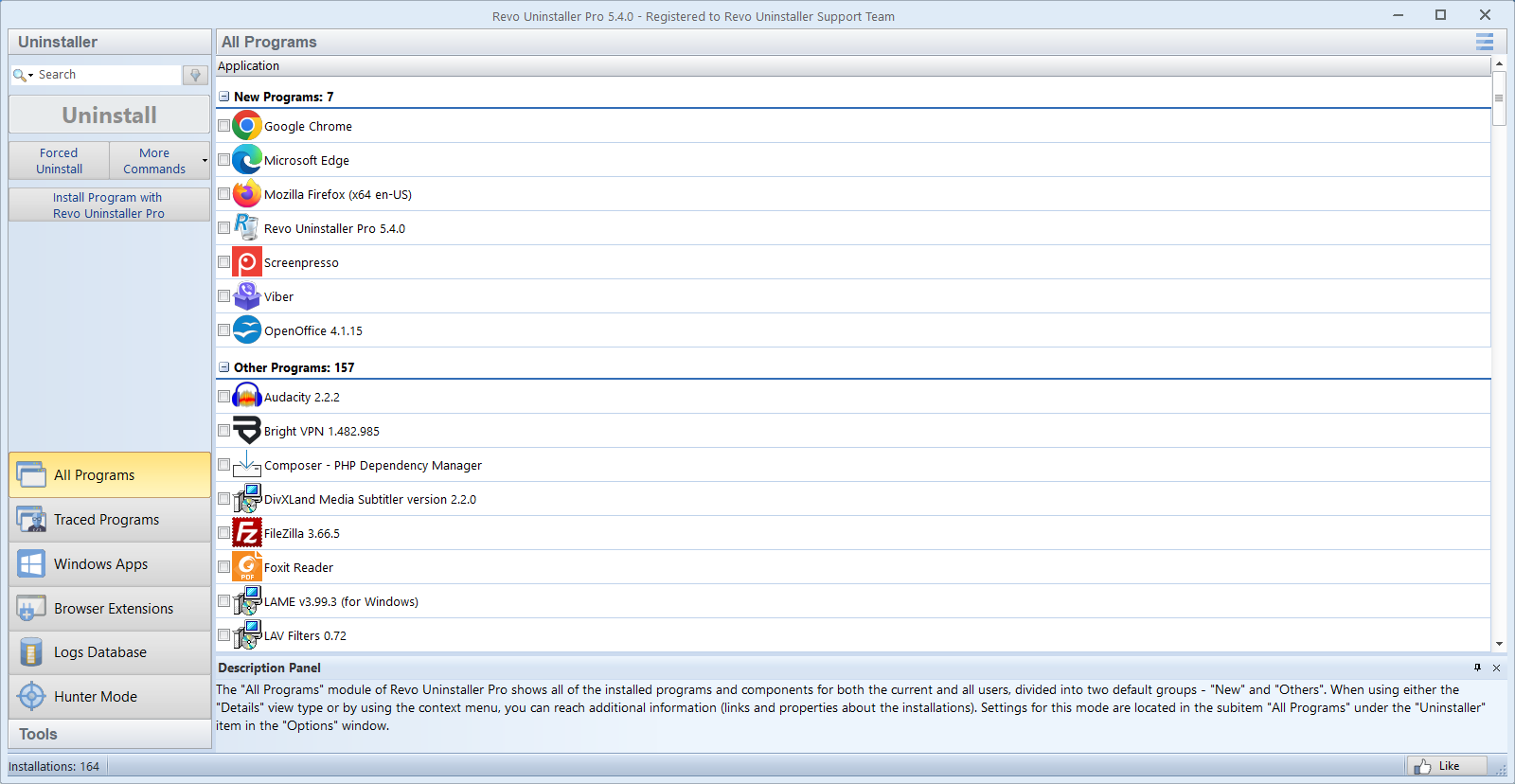
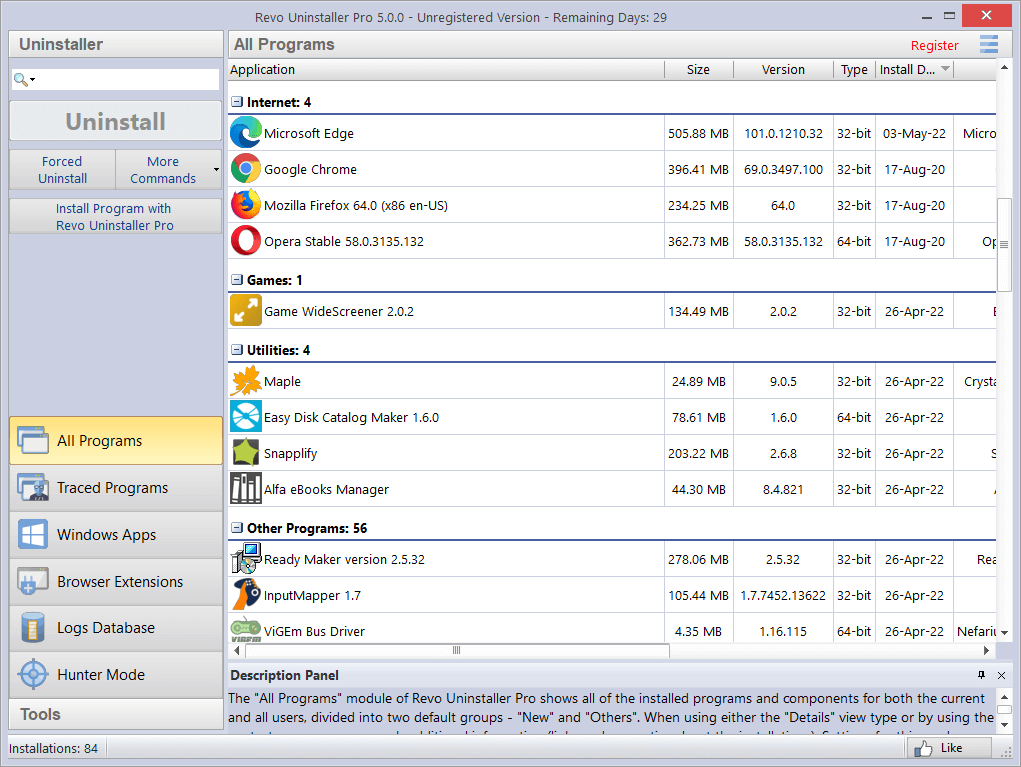
Example of the main programs list: actions and entry points vary by Free vs Pro and version. Labels may differ from this capture.
Flow
What a careful pass looks like end to end
Not every step applies to every app; treat this as a default rhythm for large suites or anything that installs services and tray helpers.
- 1Note the exact product name and version (screenshot the list row if you support someone remotely).
- 2Close the app and exit its tray tools; end obvious child processes only when you are sure what they are.
- 3Run the vendor uninstaller or Windows’ entry; accept reboot prompts when they appear.
- 4Open Revo, start a leftover scan in a conservative mode, and research anything that mentions another vendor.
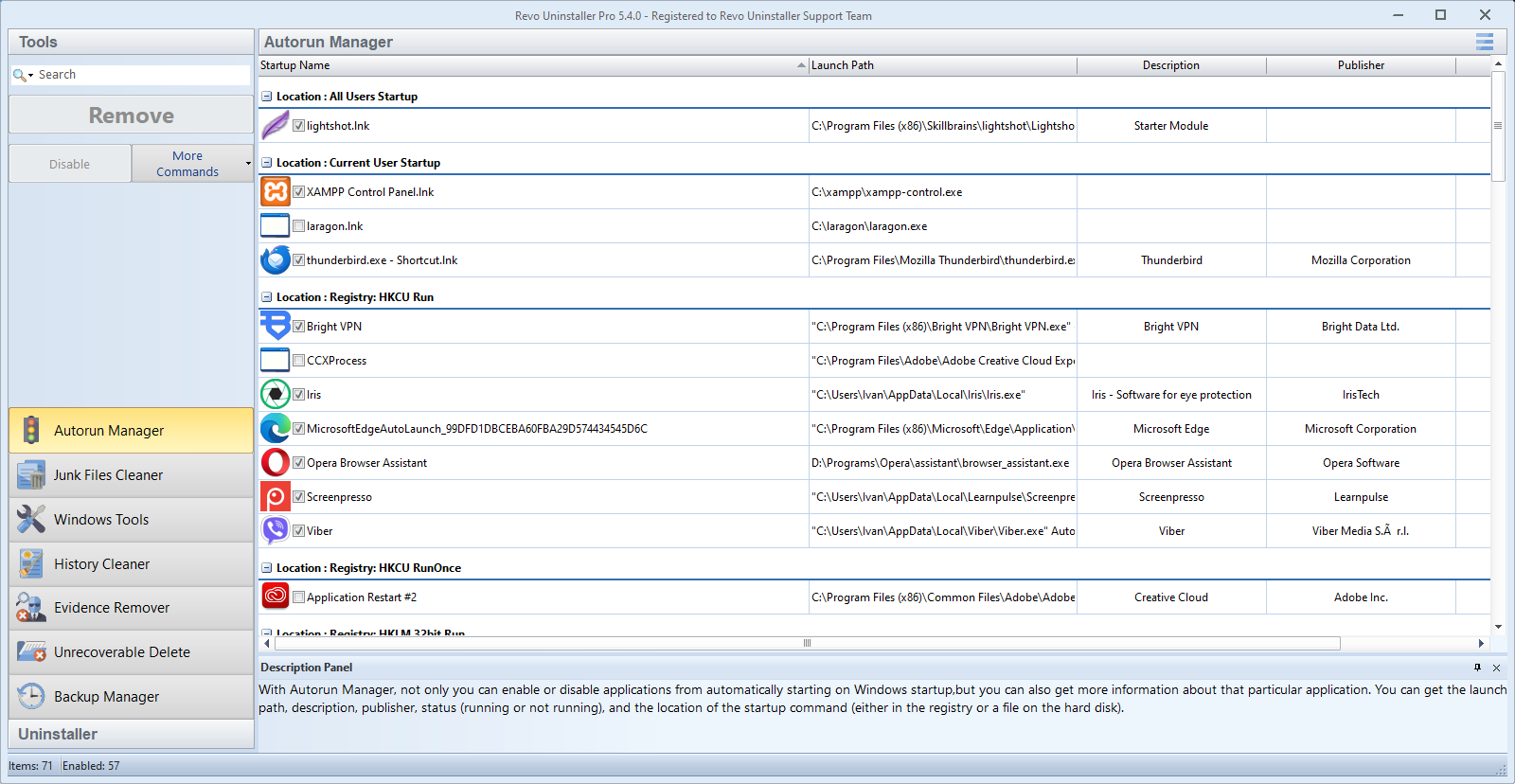
- 5Check Startup and scheduled tasks for the same product string; log changes if the PC is shared.
- 6Reboot again, then decide whether disk cleanup or storage tools are worth running.
Same ideas with screenshots: Recommended workflow on Features.
Stuck?
When the vendor uninstaller errors out
Error codes and “source file missing” dialogs usually mean the MSI cache, a network install path, or a partial update. Screenshot the exact text, reboot once, then try repair or uninstall again from the same account you used to install.
If disk space is critically low, free a few gigabytes first; many uninstallers expand temp files before they remove the product. For grayed-out buttons and policy blocks, see Grayed-out uninstall.
Safe Mode
Last resort, not the first click
Booting to Safe Mode can help when a driver or service locks files, but it is slower to work in and easy to misread if you are tired. Use it after a normal attempt, a reboot, and closing every tray tool you recognize.
Boundary notes: FAQ mentions Safe Mode alongside portable apps and Store limits.
Time
How long to budget
Ballpark planning so you do not start a security-suite removal ten minutes before a meeting.
- Small utility: often 5–15 minutes including one reboot if asked.
- Creative or security suite: plan 30–90 minutes of focused time plus possible Safe Mode follow-up.
- “Prep for resale” pass: treat software cleanup as one session and disk reset or wipe as another; see Before you sell or gift a PC.
Data & licenses
Before the program row vanishes
Uninstalling is not the same as signing out of a cloud account or exporting a project. Do housekeeping while the app still opens: sync or copy local libraries, note where custom presets live, and finish any in-app “deactivate this seat” steps the vendor documents.
- Subscription products may keep billing even after files are gone; cancel or transfer in the vendor portal, not only in Windows’ list.
- DRM stores, game saves, and DAW sample packs sometimes sit outside the default install folder; check the app’s own backup or relocate dialogs first.
- We do not handle key recovery or refunds here; for serial disputes contact whoever sold or issued the license. This block is about avoiding surprise data loss, not license law.
- After removal, browser logins and synced passwords are unaffected; only local-only profiles inside that app need export.
Administrator context
Many removals work as a standard user; stubborn entries, some services, and certain scans are smoother when you launch Revo with elevation. If an uninstall button stays gray, try “Run as administrator” before reaching for forced uninstall.
Desktop Windows
This site targets consumer and small-business PCs (Windows 10 and 11 style workflows). Server roles, deep imaging, and enterprise deployment are out of scope; follow your org’s change process there.
Backups beat bravado
Restore points, vendor backups, or file history matter more than any uninstall tool. Revo helps you see stragglers; it does not replace a recovery plan when a driver or runtime is shared.
Session prep
Before you start the uninstall window
A calm session beats retries. These checks take a minute and prevent “half removed” states when something else is still writing to the same folders.
- Save open documents in the target app and quit cloud sync or backup jobs that might lock its install directory.
- Plug in the laptop on long removals; sleep or hybrid hibernate mid-uninstall is a common source of “finish later” errors.
- If you are removing a VPN, firewall, or security suite, note whether you will need offline credentials or a second device to re-download the vendor tool.
- Close unrelated game clients and overlay tools for the duration; they add noise in Task Manager when you verify the app really exited.
Connectivity
Metered Wi‑Fi, offline PCs, and huge patches
Some uninstallers phone home for a repair package or re-download components. On a capped connection, expect long stalls or cryptic failures that clear once you are on Ethernet or a full-speed hotspot.
- If the PC is air-gapped, keep the vendor’s offline uninstall tool or original media on a USB drive before you start.
- Defer multi-gigabyte suite removals until you can leave the machine plugged in; partial downloads mid-uninstall are painful to debug.
- Windows Update can run at the same time; finish critical updates first when the vendor docs say the product depends on a specific build.
- Afterward, leftover scans work the same offline; you only lose easy web lookup for unfamiliar publisher strings.
Household PCs
Multiple Windows accounts, one machine
Installs can be per-user or for everyone on the PC. If you uninstall from an admin account while the app only lived under a child’s profile, you may still see folders under C:\Users\… after the list row disappears.
- Log in as the person who actually used the software before you assume the uninstall “failed.”
- Compare Settings → Accounts with the install date you remember; mismatched dates often explain “ghost” shortcuts on another desktop.
- On shared laptops, leave a sticky note or chat message naming what you removed and when—future uninstalls are calmer when everyone knows the baseline.
Naming
Renamed folders and re-branded bundles
Publishers change marketing names while the executable on disk stays the same. Leftover scans may list paths that do not match the friendly title in the uninstall list.
When a path looks unfamiliar, search the folder name plus “what is” in your browser, then cross-check the file version on disk against Add/Remove Programs if the row still exists. Guessing from acronyms alone is how people delete shared runtimes.
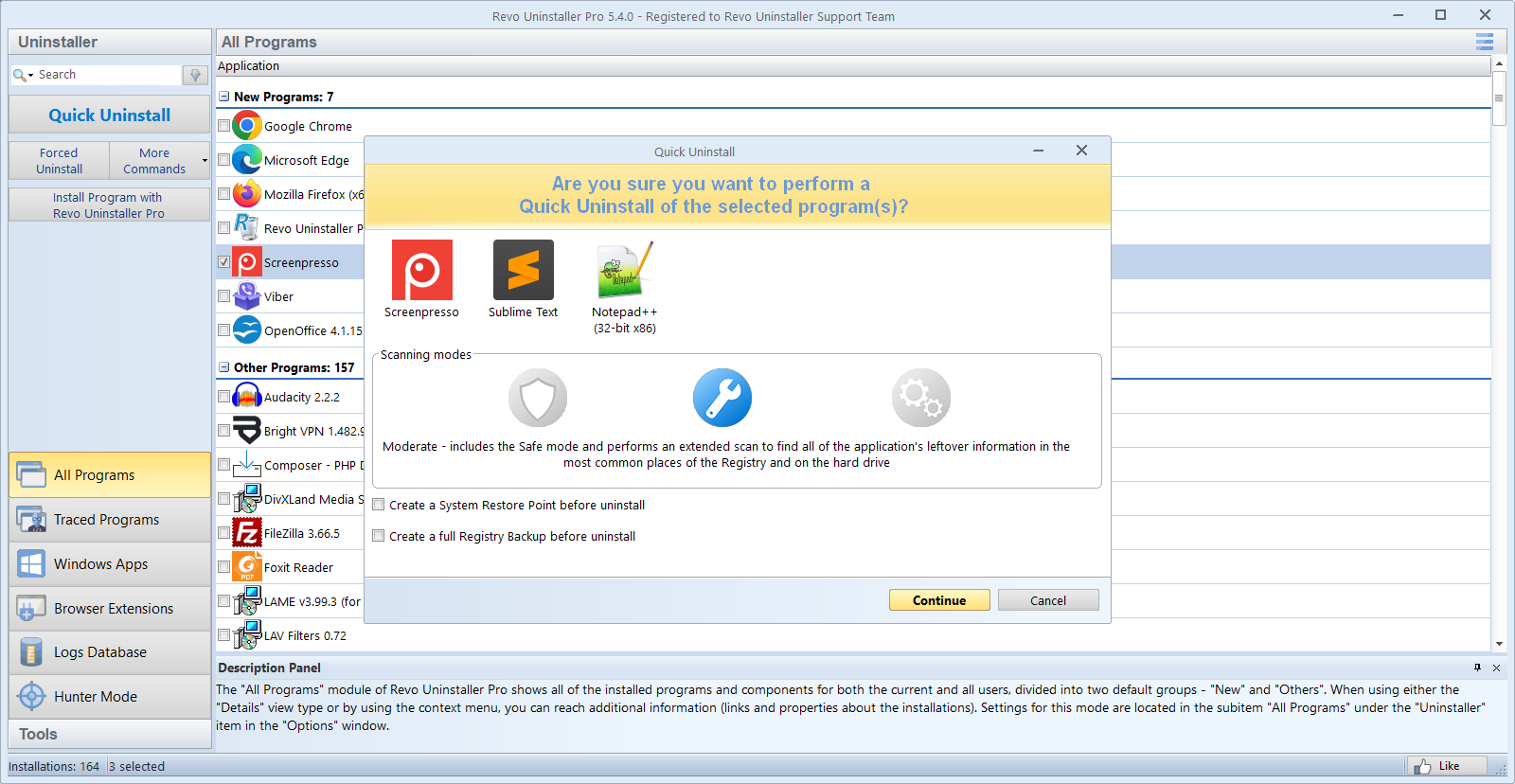
For scan discipline, pair this mindset with Scan modes on Blogs.
Disk & performance
Why freed space does not always show instantly
Windows may defer deleting large files until the next reboot, or keep a copy in the Recycle Bin. Some suites stage rollback data in hidden folders until you confirm the uninstall.
- Empty the Recycle Bin once you are sure you will not restore the deleted program folders manually.
- Storage Sense and “cleanup recommendations” can run after uninstall; read what they propose before accepting bulk deletes of “old” files.
- On laptops with small SSDs, leave a few gigabytes headroom before starting huge suite removals so temp extraction does not fail mid-way.
- If the PC still feels slow after cleanup, check background apps and startup before assuming the registry needs “repair.”
Paper trail
What to write down before aggressive cleanup
You will not remember every dialog an hour later. A short note beats arguing with yourself about whether a service name was safe.
Minimum log (two minutes)
- Product name, version string, and install path if shown.
- Whether you created a restore point or ran a backup job.
- Any error codes from the vendor uninstaller, verbatim.
If you touch services or tasks
- Service display name, binary path, and old vs new startup type.
- Task Scheduler folder + task name before disable or delete.
- Screenshot or export if your Revo build offers a removal log.
Afterward, walk the broader checklist on 12-point post-uninstall audit when the app was large or security-sensitive.
Deep links
If you only open one extra page
These entry points mirror the same tone as the home page but go deeper where people usually get stuck first.
- Recommended workflow — numbered sequence with screenshots.
- Grayed-out uninstall — elevation, reboots, and policy.
- Services that survive — what still runs after the row vanishes.
- Before you sell or gift a PC — beyond uninstall: accounts and disk reset.
On this site
Guides, not hype
revo-uninstaller.app is an independent companion for Windows users who want to remove software methodically. We explain how Revo Uninstaller extends what Settings and Control Panel already do, where leftover scans help, and which mistakes cause real downtime.
Nothing here replaces the product’s own in-box help or whoever supports the edition you installed. Think of it as a calm checklist layer on top of the setup you already ran.
- Features walks through leftover modes, forced uninstall, startup tools, logs, and Hunter with matching screenshots.
- Media gathers stills and demo clips that stay on this site, with no third-party video hosts.
- Blogs goes deeper on audits, Free vs Pro, grayed-out uninstalls, selling a PC, and services that outlive the app.
- FAQ answers the safety and policy questions people ask before they touch the registry.
- Stories turns recurring forum and help-desk patterns into short vignettes so you can see how features combine in practice.
Basics
In plain terms
Short definitions so the rest of the site clicks faster. Deeper detail lives on Features and Blogs.
Leftovers
Files, folders, or registry data that still reference a program after its uninstaller finishes. Some entries are safe to remove; others belong to shared runtimes you should keep.
Forced uninstall
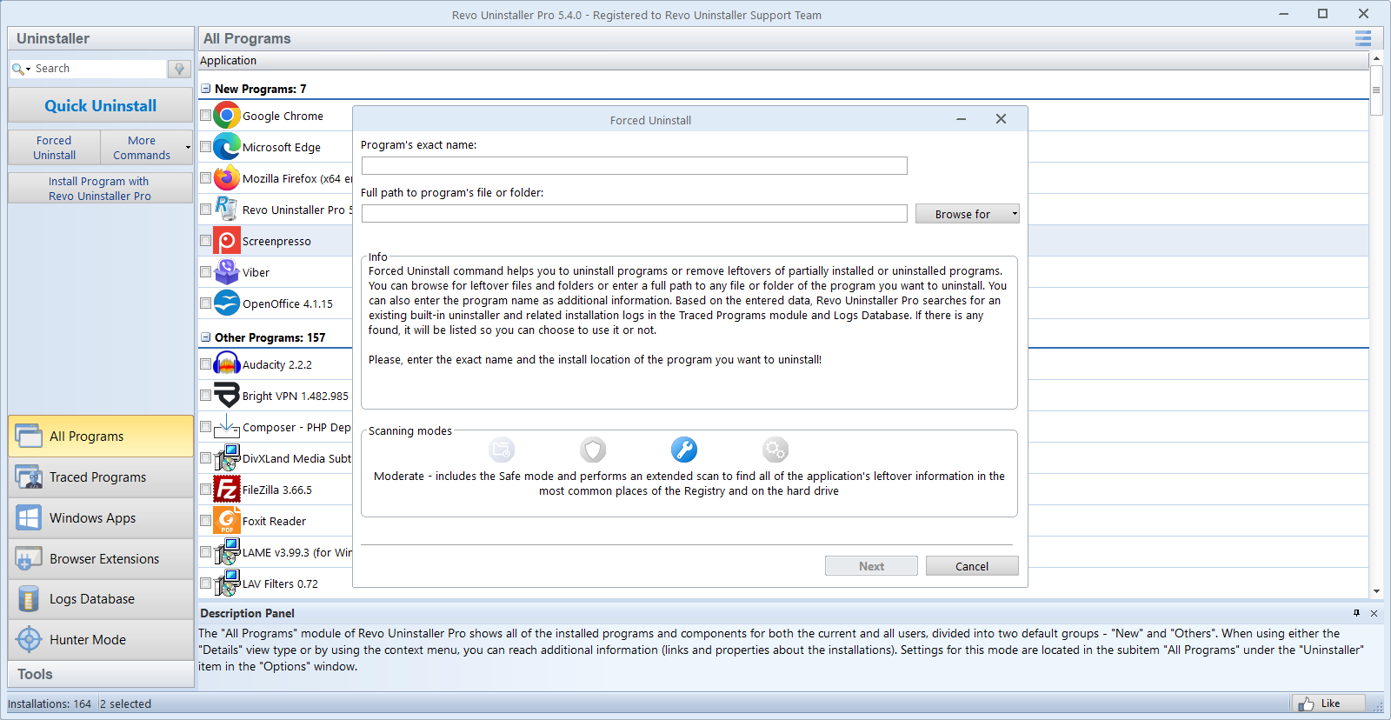
A path when the entry exists in the list but the vendor’s uninstaller is missing or crashes. It detaches the app so you can run a careful leftover pass afterward.
Why read each line
Bulk deleting “everything found” is how shared DLLs and driver helpers break. Slow, line-by-line review is the feature, not a chore to skip.
Hunter mode
Drag a target onto a window or tray icon to jump to the related uninstall entry or process. Built for “what is this popup?” moments, not random desktop aiming.
Bundles
One installer, several programs
Game clients, “optimizer” packs, and some freeware ship extra tools, browser bars, or updaters in the same wizard. Removing the headline app sometimes leaves those companions behind with different names in the list.
- Search the list for the same publisher string and uninstall helpers before you run aggressive leftover deletes on the main product.
- Scheduled tasks and startup entries may reference a small “updater” exe with an unrelated product name; match paths to folders you still see on disk.
- Trials that nag you to upgrade often reinstall from a download cache; clearing the vendor’s temp folders is separate from removing the ARP entry.
- For patterns that repeat across PCs, Stories groups similar bundle behavior into short examples.
Typical starting points
- Recommended workflow | order of restore point, vendor uninstall, reboot, scan.
- FAQ | “Is it safe to delete every leftover?” and similar.
- Scan modes explained | Safe, Moderate, Advanced in context.
- Stories | anonymized patterns from real setups.
- Hunter mode | quick mental model before you drag the crosshair.
- 12-point audit | after the uninstaller says “done.”
- Grayed-out uninstall | elevation, reboot, and policy.
- Services that survive | Task Manager vs Services.msc.
Browsers
Desktop apps vs extensions and profiles
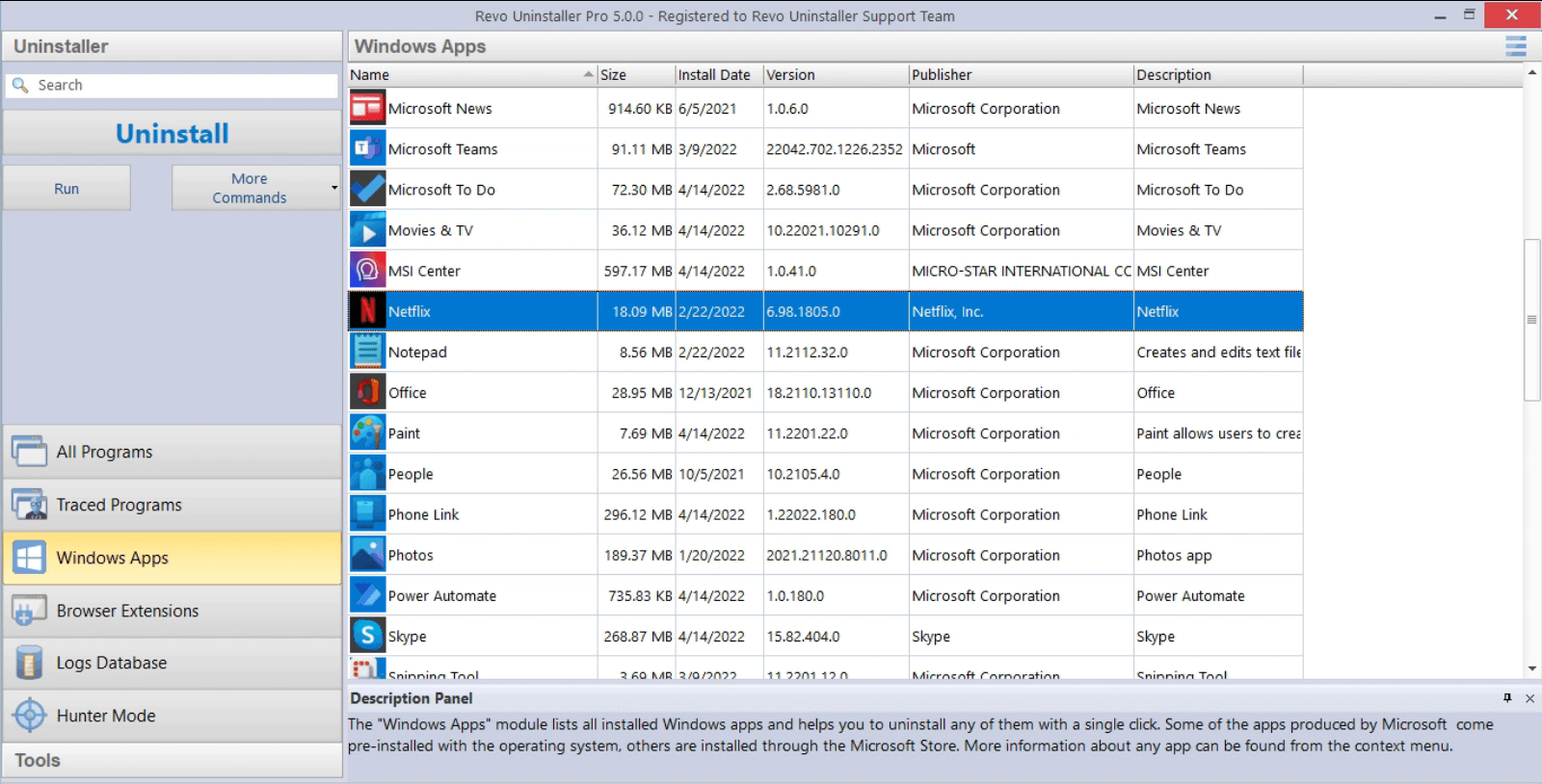
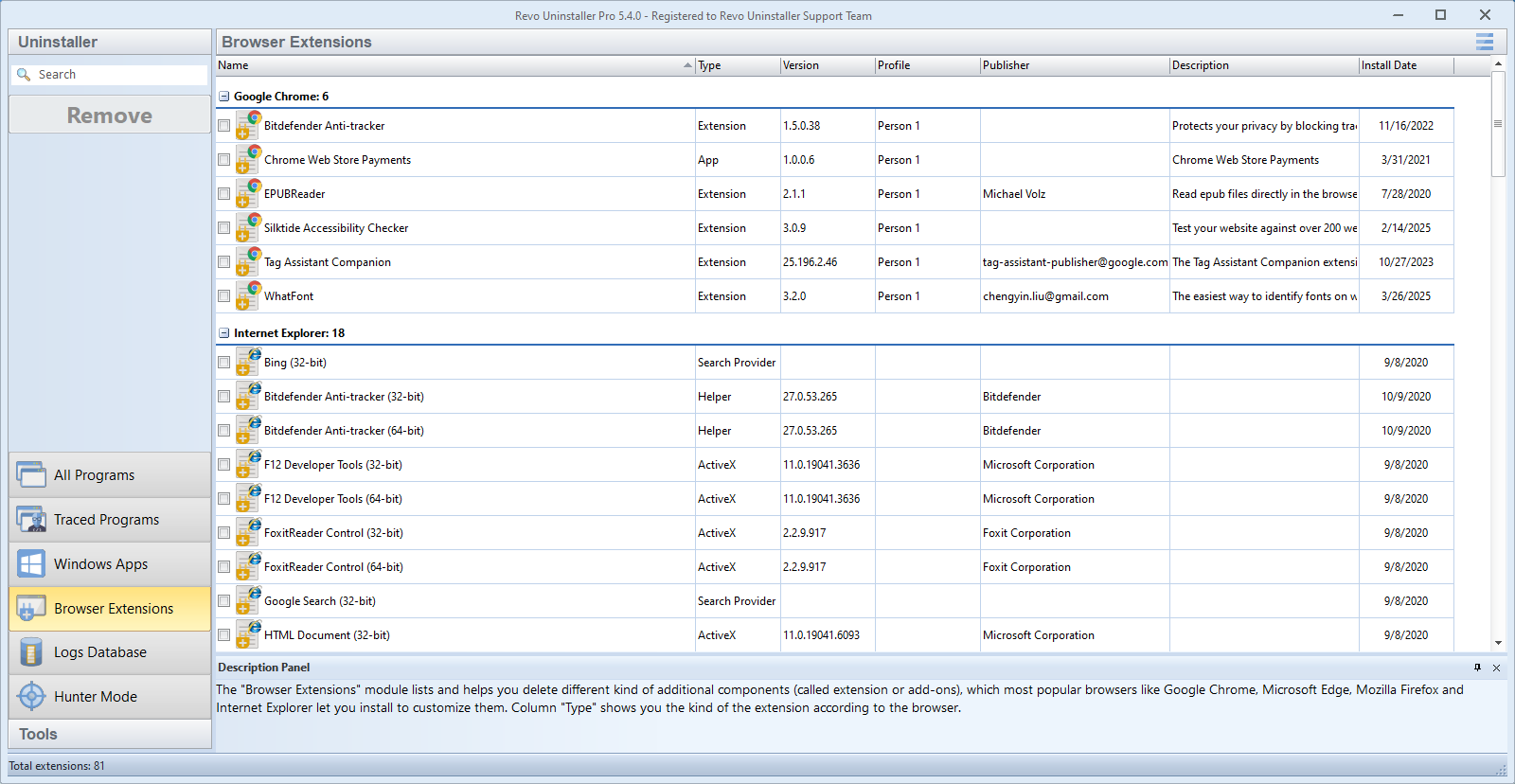
Removing a Win32 program does not always remove browser extensions that were bundled with it. Edge, Chrome, and Firefox keep extensions in their own management screens; Revo’s Browser Extensions module lists those add-ons so you can clear them in one place.
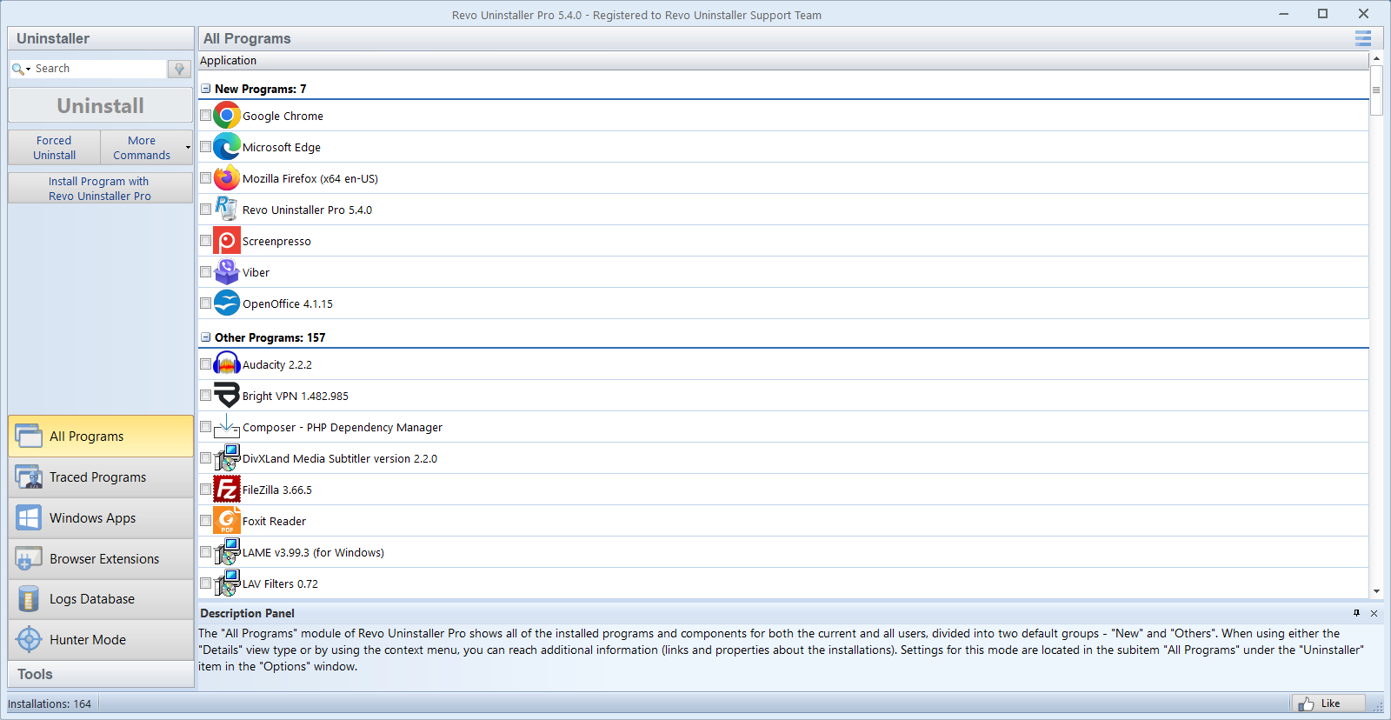
- After uninstall, open each browser you use, review Extensions or Add-ons, and remove entries tied to the product you just removed—or use Revo’s Browser Extensions list for the same check.
- Separate browser profiles (work vs personal) may still sync toolbar clutter from the cloud; clearing one PC does not reset another signed-in device.
- PDF tools, “shopping helpers,” and coupon injectors often register both an app row and a silent extension; plan both passes in one session so you do not chase ghosts twice.
Caution
Habits that send people to recovery media
None of this is moralizing; it is what shows up in support threads after a bad afternoon. If you recognize yourself, slow down once and the next uninstall gets easier.
- 1.Skipping a restore point because “it is only one app.” Suites touch drivers, audio stacks, and half a dozen runtimes.
- 2.Selecting every leftover on the first pass without reading paths. Shared Visual C++ and GPU libraries love this mistake.
- 3.Ignoring “restart required” and immediately running a deep cleaner. Pending renames and locked files need that reboot.
- 4.Stacking three “optimizer” apps the same day you uninstall. You will not know which tool broke what.
More safety framing in FAQ and under Safety habit on Features.
Signals
When to dig deeper after a normal uninstall
If none of these show up, you can often stop after Windows’ own removal. If several match, plan time for a leftover scan and a startup review.
- The program folder under
Program Filesis still full-size after uninstall. - Tray icons or background updaters return after every reboot.
- Disk space barely moves even though the app “uninstalled successfully.”
- The same trial or bundle reinstalls itself without you opting in again.
- Task Manager still lists a process with the old publisher name.
- You are handing the PC to someone else and need confidence nothing sensitive lingered.
Dev stacks
IDEs, SDKs, and “just delete the folder”
Visual Studio, JetBrains toolchains, and language runtimes often register side-by-side versions. Uninstalling one year’s build may leave shared components another project still needs.
- Use the vendor’s own “Modify” or “Remove” entry when it exists; it understands shared workloads better than a raw folder delete.
- After removal, open a solution or project you still maintain to confirm compilers and debuggers launch before you chase leftover registry keys.
- Docker Desktop, WSL distros, and Android emulators sit beside desktop apps—clean those layers with their own docs, not only the Windows program list.
See also the note on nested environments under Gallery on this page.
Games & launchers
Clients, anti-cheat, and repair tools
Game stores and anti-cheat drivers can outlive the headline title you removed from the list. A leftover scan may still show paths that belong to the platform, not only one game.
Prefer the launcher’s own repair or uninstall flow first, reboot, then inspect. Aggressive cleanup mid-season is how people break ranked queues they did not intend to touch.
Background services angle: Services that survive uninstall.
Remote help
When you are on the phone with a relative
Ask them to read dialog text slowly, including the title bar and any code in parentheses. “It says error” is not actionable; “0x80070643 in the middle” is.
- Have them screenshot the Programs list row before they click uninstall so you both know the exact version string.
- Confirm whether Windows just installed updates; defer heavy removals until Update finishes and the PC rebooted once.
- If they use a metered hotspot, set expectations: large suites may stall until they are on unmetered Ethernet.
- End the call with a written checklist (reboot, try again, screenshot error) so the next session does not restart from zero.
Security software
Third-party antivirus during uninstall
Real-time scanning can slow uninstallers that touch thousands of small files or rewrite system-adjacent keys. That slowness is not the same as “Revo is broken”; it is contention on disk and hooks.
Avoid disabling protection casually. If the vendor or Microsoft docs recommend a temporary pause for their own removal tool, follow their order and duration, then re-enable shields before you browse.
Installer quarantined? See FAQ: antivirus quarantine before you treat the file as malware.
Virtual & nested
VMs, snapshots, and “the other Windows”
Uninstall inside the guest you care about. A Hyper-V or VMware snapshot can roll back a bad delete, but it also rolls back legitimate work on that disk: snapshot before the session, merge after you are happy.
WSL distributions, Android subsystems, and nested dev environments have their own package managers. Removing Windows desktop software does not always clean those layers; check their docs before you assume one list is the whole story.
Gallery
Screenshots & video
Each tile shows a different moment in the uninstall flow, and none of them reuse the hero screenshot. Stills and demo video are all served from this site so nothing depends on outside embeds.
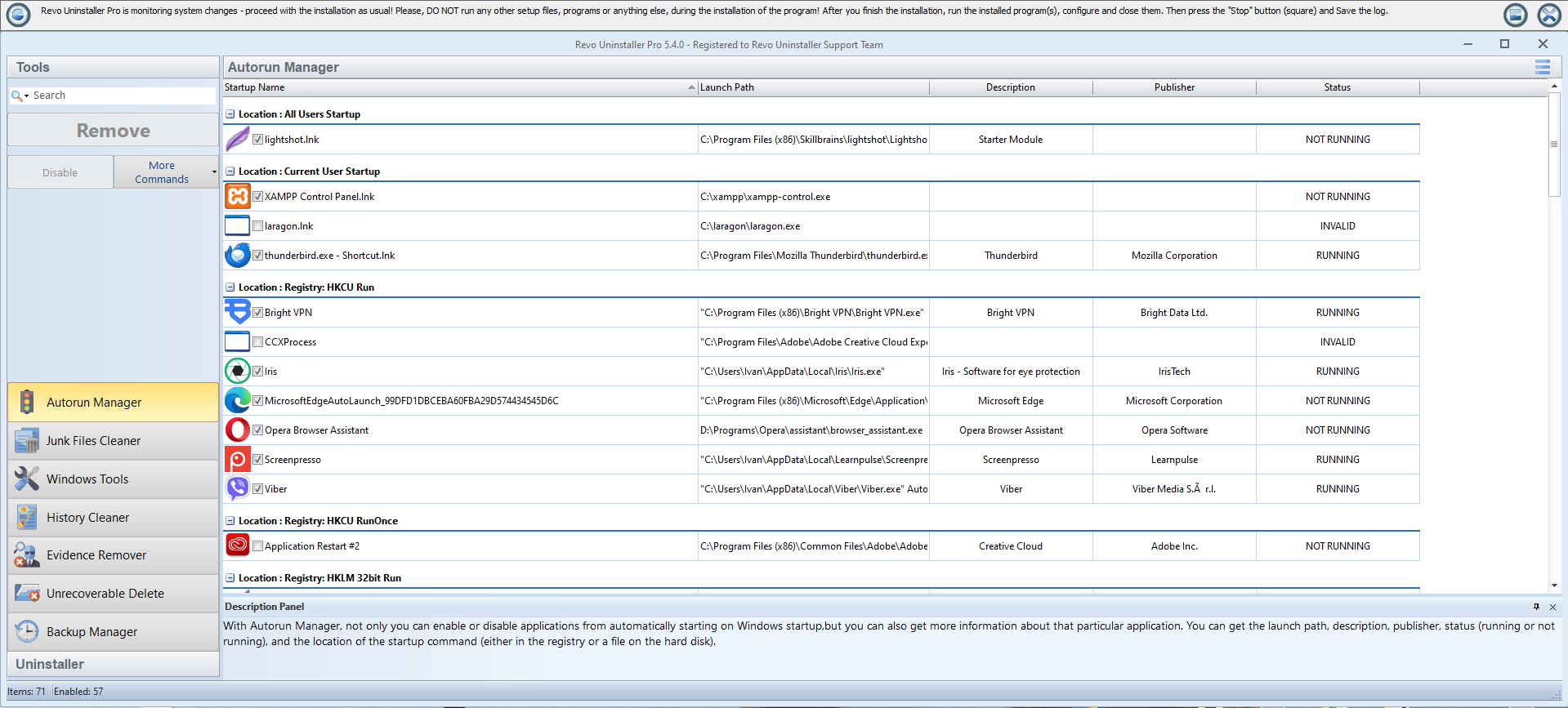
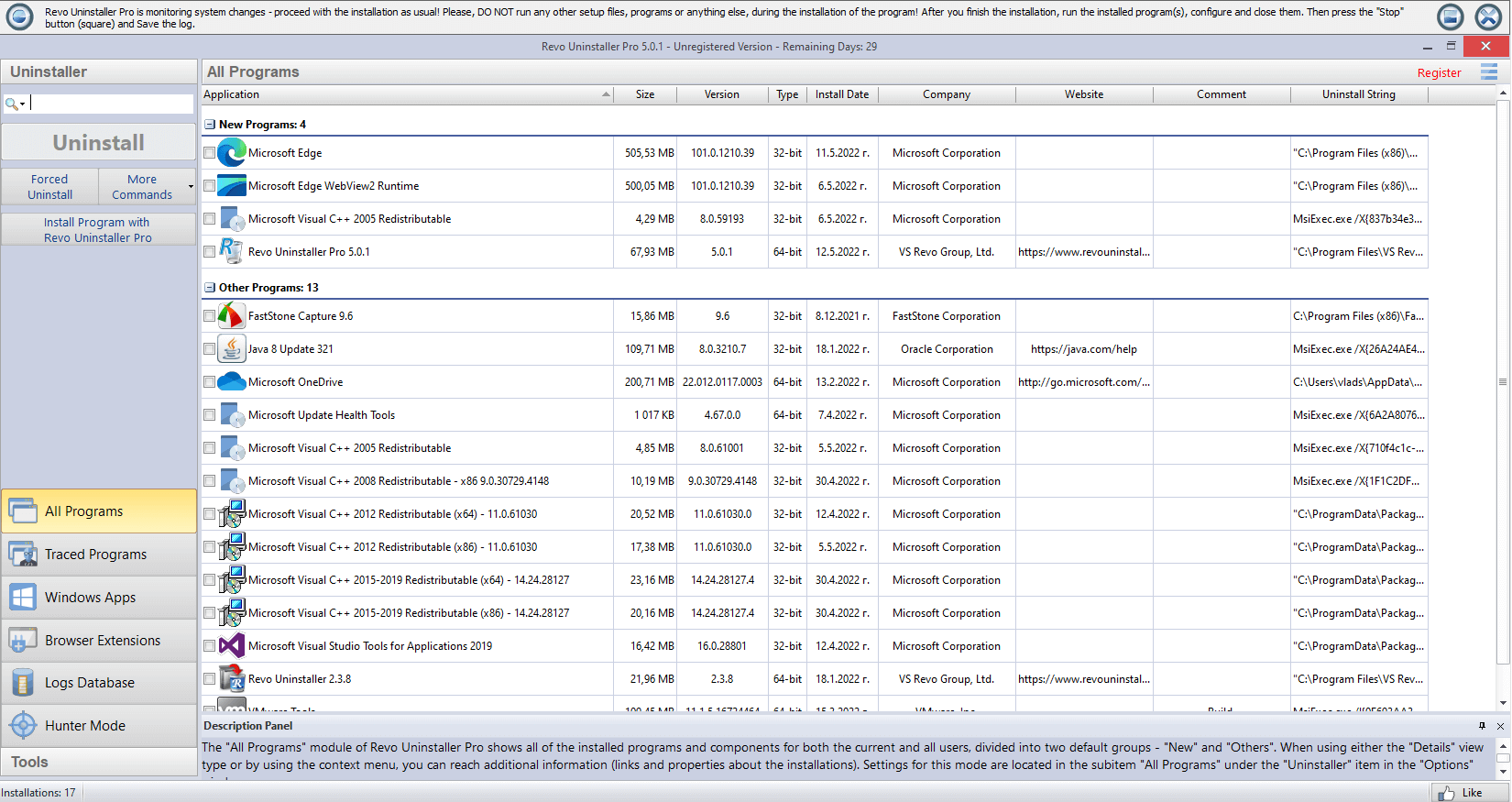
Uninstalling and cleaning are related but not identical: removing the app entry is one step; checking startup, scheduled tasks, and services is another. The tiles below mirror that split (walkthrough and cleanup, App Manager, history, comparison with Windows).
Tip: after a big suite removal, reboot once before you judge performance or run aggressive junk cleaners. Pending file operations often clear on restart.
About this gallery
Figures use descriptive alt text and captions so screen-reader users get the same story as sighted readers. Stills are hosted here only, not pulled from random image CDNs.
If you replace a tile image on your own copy of the site, update the caption so it still describes what appears in the frame.
Watch a quick tour
Hands-on clips of the interface and typical uninstall flow, served from this site only, no third-party video hosts. Need another format or troubleshooting? See the Media section.
- If playback stalls, open the Media page for alternate clips or try a lower-resolution encode (1080p H.264 is a safe default).
- Corporate networks sometimes block large downloads; test from another connection if the first source never buffers.
- Poster frames use the same Pro interface still as elsewhere so motion and stills stay visually consistent.
Context
When Windows’ own uninstall is enough
Small utilities with one install folder and no background services often disappear cleanly through Settings or Control Panel. If disk space looks right, Task Manager is quiet, and the app no longer appears in the list, you may not need a deep scan at all.
Revo is most valuable when something feels wrong after removal: tray icons return, folders remain under Program Files, or the same trial reinstalls every month.
Scope
What this site does not cover
- Malware removal playbooks (use a reputable AV or specialist guide first).
- Breaking system protection to delete built-in Windows components.
- License keys, refunds, or version-specific bugs (whoever supports your product edition).
For boundaries around Store apps, portable programs, and Safe Mode, see FAQ.
List hygiene
Duplicate names and version stacks
You may see two rows with similar titles: one for an old major version and one for the current build, or separate 32-bit and 64-bit shells from the same vendor. Uninstall the version you no longer use first; keep the row that matches the app you still launch daily.
“Unknown publisher” or blank icons sometimes mean a broken uninstall registry reference, not malware. Confirm the install folder on disk and any About or readme text that shipped with the app before you force-remove an entry.
Peripherals
When hardware ships its own software
Printers, drawing tablets, audio interfaces, and GPUs often install control panels, updaters, and driver bundles. Removing “the app” without the vendor’s own uninstall order can leave filter drivers or ASIO stacks half-registered.
Prefer the device manufacturer’s removal tool or Settings entry for that brand before you delete shared audio or print pipeline keys from a leftover list.
Games
Launchers, anti-cheat, and redistributables
Game clients and anti-cheat services can survive a title uninstall. Visual C++ and DirectX runtimes are usually shared: do not remove them just because a scan mentions a game folder.
If you cleared a whole drive of games, reboot, then review Startup and services for orphaned launchers before you treat every VC++ package as garbage.
Audience
Who this home page is for
Short profiles so you know where to click next. All paths assume you are allowed to change software on the machine you are using.
-
Household & friends
One PC with trial antivirus stacks, old games, or “helper” bundles. Start with workflow, then Stories for relatable patterns.
-
Power users
You already read paths before deleting. Use Blogs for audits and scan-mode nuance, and Hunter for mystery tray apps.
-
Informal IT (family office, clubs, classrooms)
You maintain several machines but are not a full MSP. History and logs matter: pair Features with 12-point audit before you hand a laptop to the next user.
Remote help
Helping someone else over the phone
When you cannot touch the PC, clarity beats speed. Ask them to read window titles and publisher strings exactly, and to send a photo of the program list row if messaging is available.
- Confirm they closed the app and any “update running” dialogs before uninstall.
- Have them create a restore point with you on the line; it prevents blame games if a shared DLL was mis-clicked.
- After removal, ask for a reboot before declaring success; many “it is still there” reports are pending file operations.
- Point them to FAQ for written answers they can read at their own pace.
Vocabulary
Words you will see everywhere here
- ARP / “Apps & features” entry
- The record Windows shows for an installed program. Removing it is step one; leftovers are what still mention the product afterward.
- MSI / setup cache
- Microsoft Installer packages sometimes need their original
.msito repair or uninstall. Missing source files are a common reason uninstallers fail. - Leftover scan
- A pass that suggests files and registry keys tied to an app you removed. Results are hints: confirm each line against other software before deleting.
- Junk vs leftovers
- “Junk” often means temp files and caches you can clear broadly. Leftovers are named debris tied to a specific product; treat them with more care.
Developer PCs
IDEs, runtimes, and side-by-side installs
Workstations with Visual Studio, multiple JDK or Python versions, and container toolchains accumulate shared runtimes on purpose. A leftover row that mentions “Microsoft” or “Redistributable” may still be required by projects you build every day.
Remove the product you truly retired first (old IDE channel, unused SDK), reboot, then open your remaining toolchain once before you prune “obvious” duplicates from a scan. When in doubt, keep the row and research the path against your solution’s prerequisites.
Docker Desktop, WSL distros, and Android emulators often register services and virtual adapters; pair this mindset with Services that survive on Blogs.
Navigate
Explore the site
Each destination below uses a thumbnail that matches what you will find on that page, not a random stock shot.
-
Features Capabilities and quick fixes, paired with the same walkthrough style as the feature cards. Open
-
Media Full still library plus on-page video; extra capture stands in for “more in the gallery.” Open
-
Stories Real-world vignettes: laptops and shared PCs first, same tone as the story cards. Open
-
Blogs Long-form guides and checklists; history and audit mindset. Open
-
FAQ Trust, safety, and “should I delete this?”: calm, explicit answers. Open
-
Download Official Pro packaging matches the Download page layout. Open
First steps
Before you uninstall
A few minutes of patience usually beats an afternoon of recovery. Use this short list whenever you are about to remove something large (security suites, creative packs, game clients).
- Save work and close the target program completely, including tray icons.
- Create a restore point or confirm your backup job ran recently.
- Run the vendor’s own uninstaller or Windows’ entry first when it still responds.
- Reboot if Windows asks, then run a leftover scan and read each line before deleting.
Need the full sequence? See Recommended workflow on Features.
Optional follow-ups (same day)
- Open Task Manager → Startup and disable entries you recognize as orphans from the removed app (compare with App Manager on Features).
- Run Windows Update once; some components finalize removal only after patches apply.
- If you need disk space, use Settings → System → Storage or Disk Cleanup after you are confident no shared runtime was deleted.
- Selling or gifting the PC? Software uninstall is only part of the story; see Before you sell or gift a PC.
Snapshot
Free vs Pro on the home page
Both editions can uninstall and scan leftovers; Pro usually saves time when you remove many apps in one sitting, juggle several PCs, or want richer logging. Free is often enough for occasional cleanups if you are comfortable reading each leftover line.
We do not quote prices here because they change with version and region. Confirm current edition details when you install or renew, and treat Free vs Pro on Blogs as a workflow comparison, not a shopping list.
Next reads: Quick fixes · Undo deletes & RAM · Full media library
Download setupProduct builds and Windows UI strings change; if a menu path no longer matches, use the spirit of the step (vendor uninstall first, reboot, then leftovers) and cross-check the in-app help or release notes for your build.